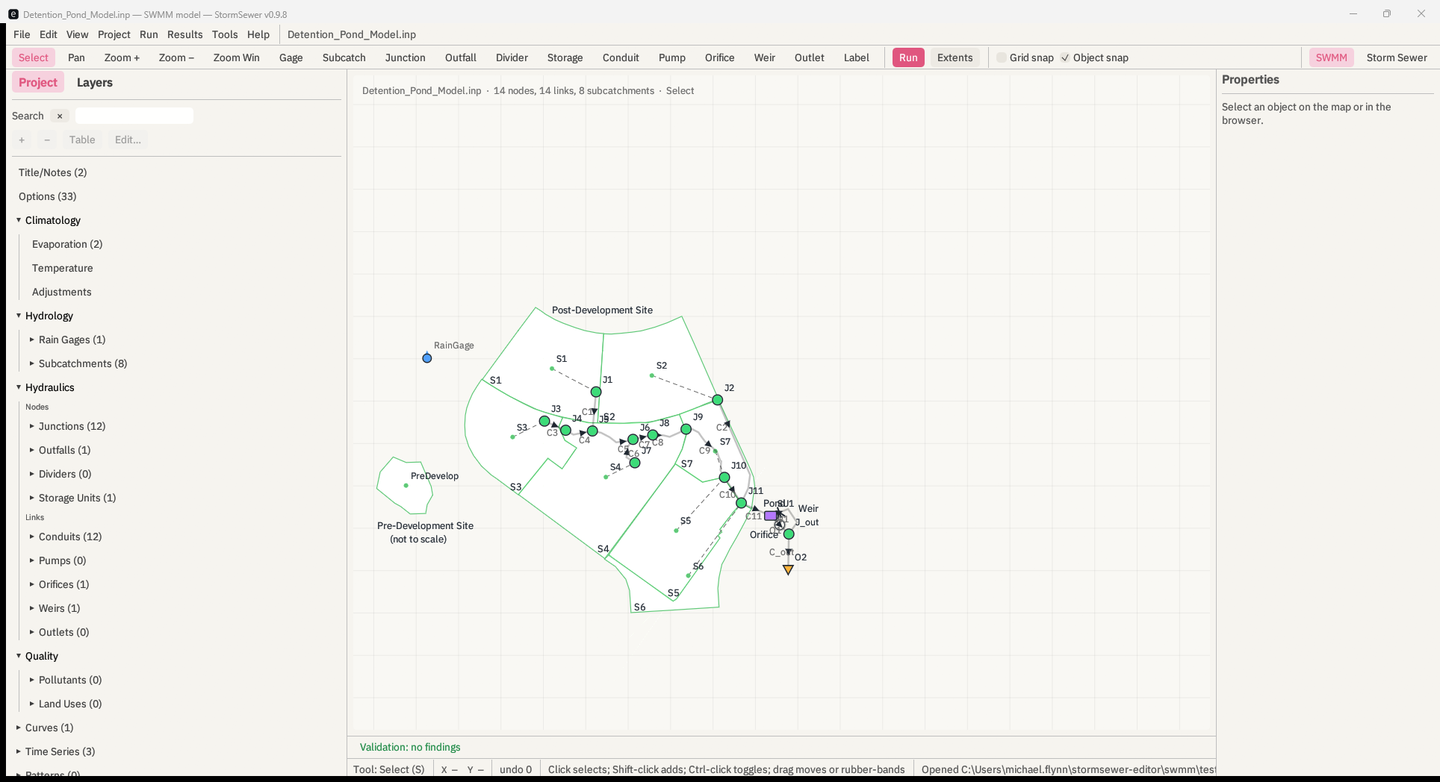
AquaSWMM is a desktop editor for EPA SWMM 5 models. It opens an
.inp file, draws it, lets you edit it on the map and in
tables, runs it on the EPA engine installed on your machine, and shows
the results on the same map. It also contains a storm-sewer design tool
(Rational method, Manning, HGL backwater, HEC-22 inlets, auto-sizing)
that can run on the conduits of a SWMM model or on its own network.
There is one interface with two engines side by side on the toolbar:
Run (F5) simulates the model in EPA SWMM,
dynamic or kinematic wave routing of the Saint-Venant equations over a
storm; Analyze (F6) designs it with
AquaSWMM's storm-sewer engine, Rational-method peak flows, Manning
capacity and a standard-step HGL, the way a storm-sewer plan set is
checked (chapter 12). File → Open…
takes a storm-sewer project (.ssproj), Hydraflow
.stm, LandXML or DXF network too and converts it into a
SWMM model (§13.1).
Three things about it are worth knowing before anything else:
runswmm.exe (or runswmm
on macOS and Linux) as a child process and reads the .rpt
and .out files it writes. Every run is stamped with the
engine's version and the SHA-256 of the executable..inp it did not change: comments, blank lines, column
spacing, sections it has no editor for. Saving a model you only looked
at writes the identical file.Ctrl+Z.| Platform | Get it |
|---|---|
| Windows | AquaSWMM-x.y.z-setup.exe (installer) or
AquaSWMM-windows-x64.zip (portable, no administrator) from
the Releases
page. Also winget install MichaelFlynn.StormSewer or
scoop bucket add stormsewer https://github.com/mf4633/scoop-bucket && scoop install stormsewer. |
| macOS | AquaSWMM-macos-universal.zip, or
brew tap mf4633/tap && brew install --cask mf4633/tap/stormsewer. |
| Linux | AquaSWMM-x86_64.AppImage (chmod +x, run)
or AquaSWMM-linux-x64.tar.gz. |
The Windows and macOS builds are not code-signed. SmartScreen and Gatekeeper warn on first launch: on Windows choose More info → Run anyway; on macOS right-click the app and choose Open. Each release lists SHA-256 checksums to check the download against.
AquaSWMM is commercial software with a free 30-day trial. Without a licence key it runs in viewer mode: models and results open and display as usual, and running an engine, saving, and report and DXF export are disabled — a disabled control says why when you hover over it, and offers a Licence… button. Nobody is locked out of their own files.
Help → Licence… (it also opens by itself at startup
when no valid key is installed) shows the plan, seats, licensee and days
left; paste the key from your email and choose
Activate, or Start free trial or
Buy, which open https://aquaswmm.com in the browser. The
key is kept in license.key in the folder described in 1.7; the
AQUASWMM_LICENSE_KEY environment variable, when set, takes
precedence. The status bar shows the plan and days left. Within 30 days
of a paid key's expiry the app asks the licence server for a renewed key
in the background; nothing about your models is sent, and offline it
simply keeps the key it has.
AquaSWMM needs a graphics driver (Direct3D 12 or OpenGL 2.0 or
later). The Windows installer bundles a software renderer (Mesa
llvmpipe) that is used only when no hardware backend starts, so remote
desktops and virtual machines work.
AquaSWMM --check-renderer starts, draws one frame, exits,
and says which renderer worked.
Install EPA SWMM 5.2 from the EPA website. AquaSWMM looks for a runner in:
AQUASWMM_SWMM_ENGINE_DIR
environment variable;Program Files,
Program Files (x86) and ProgramW6432 whose
name starts with EPA SWMM or SWMM;PATH.Several engines can be registered at once (5.1.015 beside 5.2.4, say)
and you choose per run in the Run menu. Run → Find Engines rescans. The
Run menu shows each engine as
EPA SWMM 5.2.4 — 32-bit (x86); EPA's stock Windows build is
32-bit, which is one reason the engine runs out of process rather than
as a library.
If no engine is found the Run menu says
No SWMM engine found and the Run button is refused with
No SWMM engine: choose one in the Run menu. You can still
open, edit and save models without one.
Tools → Python Terminal… needs a python (Windows) or
python3 (elsewhere) on PATH. Nothing else is
installed; the kernel script is compiled into the app. See chapter 18.
The dataset is docs/datasets/Detention_Pond_Model.inp,
the EPA sample model (public domain). It has 8 subcatchments, 12
junctions, a storage unit SU1 with an orifice
O1 and a weir W1, an outfall O2,
and a 12-hour kinematic-wave run.
AquaSWMM Detention_Pond_Model.inp).Detention_Pond_Model.inp · 14 nodes, 14 links, 8 subcatchments · Select.
The line under the map reads Validation: no findings.J1.
The Properties sheet on the right fills with its
[JUNCTIONS] row: Elevation 4973, MaxDepth 0, and so on.
Click subcatchment S1; the sheet shows its
[SUBCATCHMENTS] row and its [SUBAREAS] and
[INFILTRATION] rows under it.J1's
Elevation to 4974 and press Enter. The Edit menu now reads
Undo Set Elevation of J1. Press Ctrl+Z; the
value returns to 4973 and the file text is byte-for-byte what it
was.F5, or the red Run button
on the toolbar. The left panel shows a spinner and
running…. The pond model takes about a second. When it
finishes the Run Status window opens by itself: the
engine (EPA SWMM 5.2.4) and its binary hash, the elapsed
time, the continuity errors coloured green/amber/red, every warning with
what it means, and the report's diagnostic lists in full. The left
panel's Last run block keeps the short form:
worst continuity +0.092% (Flow Routing Continuity). If you
had not saved the model, the run used a scratch copy under
%TEMP%\AquaSWMM\run\, and the window says so
(Ran a scratch copy); the .rpt and
.out are beside that copy.J1, then
Shift-click J_out. Choose View → Profile from Selection.
The long-section shows ground, inverts, crowns, the HGL at the slider's
instant and, with Max HGL ticked, the envelope of the
run's maximum head at every node.Ctrl+Z until the
Edit menu says Undo with no label. Then File → Save. The
saved file is identical to the one you opened.That is the whole loop: open, edit, run, look, undo, save.
Top to bottom, left to right: the title bar names the file, the workspace and the version; the menu bar (File, Edit, View, Project, Run, Results, Tools, Help); the toolbar; the left panel; the map; the Properties sheet; the status bar.
From left to right: the seventeen map tools — Select, Pan,
Zoom +, Zoom −, Zoom Win, Gage, Subcatch, Junction, Outfall, Divider,
Storage, Conduit, Pump, Orifice, Weir, Outlet, Label — then
Run and Extents. At the right end,
● Unsaved appears when the model is dirty and a spinner
turns while the engine runs. Hover a tool for its full name and shortcut
key.
The snapping toggles live in View (Snap to Objects, Snap to Grid, and Grid spacing while grid snap is on), and SWMM / Storm Sewer switches workspaces from the right end of the menu bar.
Two tabs, Project and Layers, over the SWMM run panel.
+ and
− add and delete objects; Table opens the
kind's attribute table; Edit… opens its dialog. Chapter 4.The header line above the map names the file, the object counts and
the active tool. Below the map, Validation: … summarises
the live referential checks; click it to list the findings, and click a
finding to select its object. The status bar shows the tool, the
pointer's model coordinates, the undo depth, the tool's hint, and the
last file message. Chapter 3.
The right-hand sheet edits the selection. View → Properties hides and shows it. Chapter 5.
There is one workspace. Run (F5)
simulates the model in EPA SWMM; Analyze
(F6) designs it with the storm-sewer engine and opens the
design panel (chapter 12).
Storm-sewer files open as SWMM models (File → Open…, §13.1); the design basis and per-inlet
design values are kept beside the .inp as
model.design.json. Releases before 0.12 had a separate
storm-sewer design workspace with its own project file; its projects
open, convert, and analyse to the same answer here.
Every change to the model goes through one command history:
Set <field> of <name>.Ctrl+Z undoes, Ctrl+Y or
Ctrl+Shift+Z redoes. The Edit menu names the step
(Undo Add junction J13), and the status bar's
undo N shows the depth. History holds the last 500 steps.
Undo restores the file text exactly, including the original spacing of a
row the edit had rewritten.
Two things are not undo steps because they do not change the model: view changes (zoom, layers, which pane is open) and running the engine.
Ctrl+S saves to the model's own path;
Ctrl+Shift+S or File → Save As… asks for a new one. New and
Open on a dirty model raise an Unsaved SWMM model
dialog with Save model…, Discard changes and Keep
editing; closing the app asks the same question. File → Recent
Models keeps the last eight.
Autosave. While the model is dirty, its text is
written every few minutes — the interval is Autosave every N
min in the Run menu, default 2, 0 to turn it off — to
<model>.inp.autosave beside the file, or under
%APPDATA%\AquaSWMM\recovery for a model that has no file
yet. Saving or closing the model removes the snapshot. Opening a file
that has a newer snapshot beside it asks Recover unsaved
changes? with both timestamps: Restore autosave or
Discard it, keep the file. The snapshot never touches the
.inp itself.
The document is lossless in this sense: parsing a file and writing it back produces the identical bytes, for every file the tests have seen. Kept in place are
;; rulers and ;
remarks) and every trailing ; comment on a data line;[OPTIONS];[LID_CONTROLS], [STREETS], anything a later
SWMM adds);[Polygons] beside
[COORDINATES]);The one thing that is not preserved is the exact padding of a row
after you edit it: the row is rewritten whitespace-delimited,
padded to the column widths of the section's own ;;----
ruler, with the section's separator (tab if the ruler uses tabs). The
values are exact; the spacing is regenerated. Unedited rows never
change.
This is checked in swmm/tests/doc_roundtrip.rs against
the seven EPA sample models, byte for byte, and by undoing random edit
sequences back to the original text.
| What | Where |
|---|---|
| Preferences (theme, snap, layer settings) | %APPDATA%\AquaSWMM\app_prefs.json (Windows),
~/Library/Application Support/AquaSWMM (macOS),
$XDG_CONFIG_HOME/stormsewer or
~/.config/aquaswmm (Linux) |
| Recent SWMM models | recent-inp.json in the same folder |
| A run of an unsaved model, or of a model on a non-ASCII path | a scratch copy under %TEMP%\AquaSWMM\run\<hash>\
with its .rpt and .out and any
[FILES] data files carried along |
| Autosave snapshot of a dirty model | <model>.inp.autosave beside it, or
%APPDATA%\AquaSWMM\recovery\ for a model with no file |
| Run history for Compare Runs | %TEMP%\AquaSWMM\runs\<n>\ — the last ten
runs |
| The Python kernel script | %TEMP%\stormsewer-pykernel-<hash>.py |
A run of a saved, clean model writes its .rpt and
.out beside the .inp, which is EPA's own
convention.